


INTEGRATION DETAILS
INTEGRATION DETAILS
Integration with Luma
Integration with Luma
Integrate Luma Calendar to streamline your schedule and keep your team aligned on upcoming events.
Integrate Luma Calendar to streamline your schedule and keep your team aligned on upcoming events.



Overview
Connect Luma Calendar with Flowlink to bring all your events into one clear, centralized workspace for better planning and complete team visibility. View upcoming meetings, deadlines, and team events without switching between tools.
Every calendar update syncs automatically inside Flowlink, helping your team stay aligned, prepared, and on schedule at all times.
What you can do with Luma + Flowlink
Luma integration helps teams manage time and events with clarity and ease.
1. View upcoming events in one place
See all Luma calendar events directly inside Flowlink for quick access and visibility.
2. Stay aligned as a team
Shared schedules help everyone stay aware of important meetings and events.
3. Get real-time updates
Any changes to events sync instantly, keeping schedules accurate.
4. Reduce scheduling confusion
One unified calendar view eliminates missed events and miscommunication.
Tools that make scheduling effortless
Teams love this integration because it simplifies how schedules are shared and managed. By connecting Luma with Flowlink, teams reduce context switching and stay focused on what’s coming next across teams, timelines, and daily planning.
With all events visible in one workspace, collaboration becomes smoother and planning becomes more reliable.
How to set it up
Setting up Luma with Flowlink is fast and simple.
Step 1. Go to Flowlink integrations
Open Flowlink → Settings → Integrations.
Step 2. Select Luma Calendar
Choose Luma Calendar from the list of available integrations.
Step 3. Connect your account
Authorize Flowlink to securely sync with Luma.
Step 4. Choose what to sync
Select events and calendars you want visible in Flowlink.
Step 5. Save your preferences
Your calendar is now synced and ready to use.
Start using Luma + Flowlink
Stay organized, stay aligned, and stay ahead. Integrate Luma Calendar with Flowlink and keep your team on the same schedule.
Overview
Connect Luma Calendar with Flowlink to bring all your events into one clear, centralized workspace for better planning and complete team visibility. View upcoming meetings, deadlines, and team events without switching between tools.
Every calendar update syncs automatically inside Flowlink, helping your team stay aligned, prepared, and on schedule at all times.
What you can do with Luma + Flowlink
Luma integration helps teams manage time and events with clarity and ease.
1. View upcoming events in one place
See all Luma calendar events directly inside Flowlink for quick access and visibility.
2. Stay aligned as a team
Shared schedules help everyone stay aware of important meetings and events.
3. Get real-time updates
Any changes to events sync instantly, keeping schedules accurate.
4. Reduce scheduling confusion
One unified calendar view eliminates missed events and miscommunication.
Tools that make scheduling effortless
Teams love this integration because it simplifies how schedules are shared and managed. By connecting Luma with Flowlink, teams reduce context switching and stay focused on what’s coming next across teams, timelines, and daily planning.
With all events visible in one workspace, collaboration becomes smoother and planning becomes more reliable.
How to set it up
Setting up Luma with Flowlink is fast and simple.
Step 1. Go to Flowlink integrations
Open Flowlink → Settings → Integrations.
Step 2. Select Luma Calendar
Choose Luma Calendar from the list of available integrations.
Step 3. Connect your account
Authorize Flowlink to securely sync with Luma.
Step 4. Choose what to sync
Select events and calendars you want visible in Flowlink.
Step 5. Save your preferences
Your calendar is now synced and ready to use.
Start using Luma + Flowlink
Stay organized, stay aligned, and stay ahead. Integrate Luma Calendar with Flowlink and keep your team on the same schedule.
Work better together, wherever you are
Connect, share ideas, keep your team aligned.
View demo
View demo
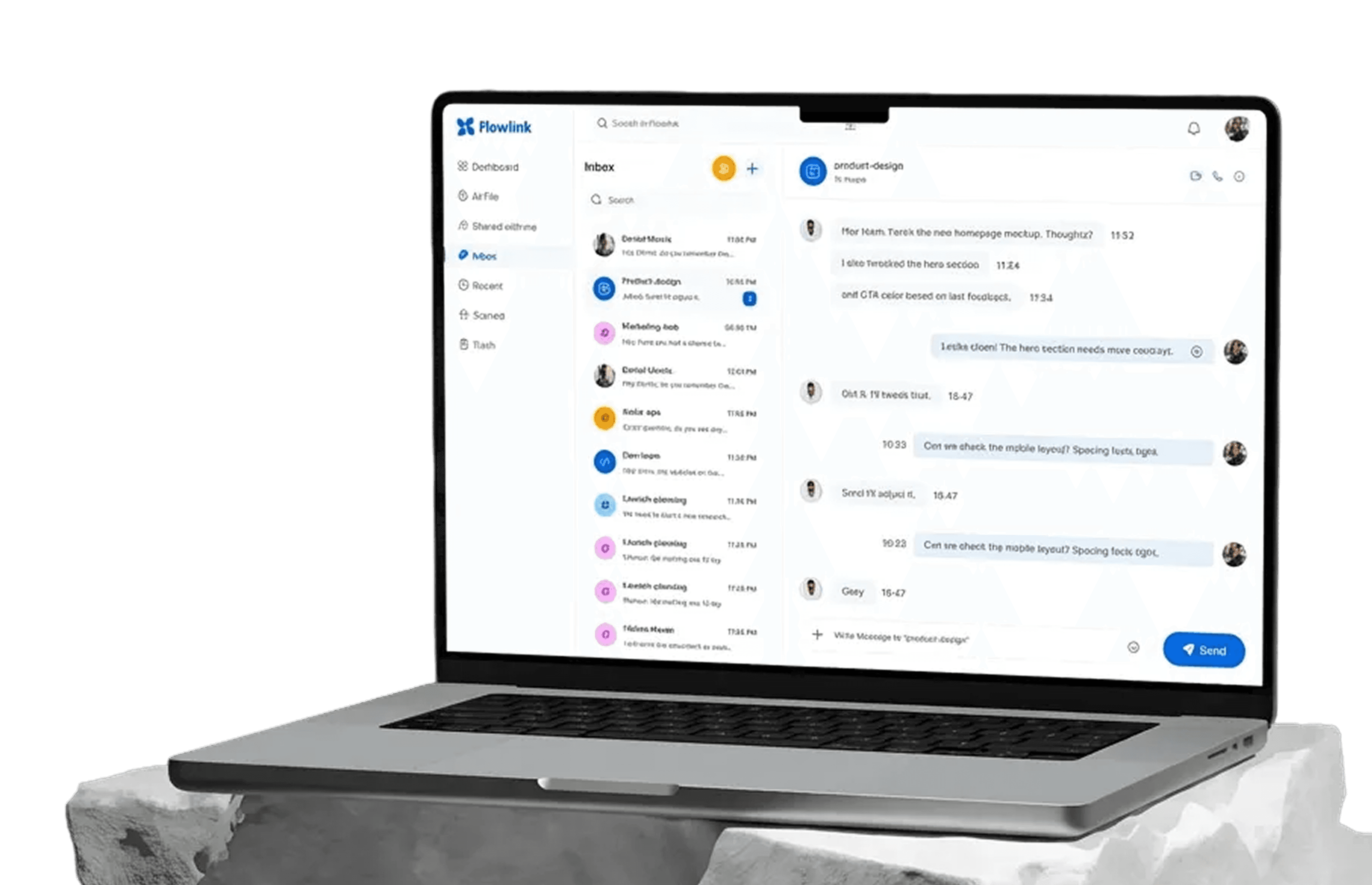
Work better together, wherever you are
Connect, share ideas, keep your team aligned.
View demo
View demo
Work better together, wherever you are
Connect, share ideas, keep your team aligned.
View demo
View demo