


INTEGRATION DETAILS
INTEGRATION DETAILS
Integration with Lumo
Integration with Lumo
Connect your Lumo to Flowlink to view tasks, track progress, and manage deadlines directly from your workspace.
Connect your Lumo to Flowlink to view tasks, track progress, and manage deadlines directly from your workspace.



Overview
Connect Lumo with Flowlink to bring all your tasks, progress updates, and deadlines into one centralized workspace. Stay on top of work, monitor progress, and keep projects moving without switching between tools.
Every task update syncs automatically inside Flowlink, giving your team clear visibility and better control over their work.
What you can do with Lumo + Flowlink
Lumo integration helps teams plan, track, and deliver work with ease.
1. View tasks in one place
Access all Lumo tasks directly inside Flowlink for quick visibility and organization.
2. Track progress in real time
See status updates and completion progress as work moves forward.
3. Manage deadlines effortlessly
Keep due dates visible and avoid missed deadlines with synced updates.
4. Align teams around work
Ensure everyone stays on the same page with shared task visibility.
Tools that make work management effortless
Teams love this integration because it simplifies how work is tracked and managed. By connecting Lumo with Flowlink, tasks and progress stay visible—reducing confusion and improving accountability.
In one workspace, teams collaborate, focus, and deliver on time.
How to set it up
Setting up Lumo with Flowlink takes just a few steps.
Step 1. Go to Flowlink integrations
Open Flowlink → Settings → Integrations.
Step 2. Select Lumo
Choose Lumo from the list of available integrations.
Step 3. Connect your account
Authorize Flowlink to securely connect with Lumo.
Step 4. Choose what to sync
Select tasks, progress updates, and deadlines to display in Flowlink.
Step 5. Save your preferences
Your tasks are now synced and ready to manage.
Start using Lumo + Flowlink
Stay organized, stay on track, and stay productive. Connect Lumo with Flowlink and manage all your work from one workspace.
Overview
Connect Lumo with Flowlink to bring all your tasks, progress updates, and deadlines into one centralized workspace. Stay on top of work, monitor progress, and keep projects moving without switching between tools.
Every task update syncs automatically inside Flowlink, giving your team clear visibility and better control over their work.
What you can do with Lumo + Flowlink
Lumo integration helps teams plan, track, and deliver work with ease.
1. View tasks in one place
Access all Lumo tasks directly inside Flowlink for quick visibility and organization.
2. Track progress in real time
See status updates and completion progress as work moves forward.
3. Manage deadlines effortlessly
Keep due dates visible and avoid missed deadlines with synced updates.
4. Align teams around work
Ensure everyone stays on the same page with shared task visibility.
Tools that make work management effortless
Teams love this integration because it simplifies how work is tracked and managed. By connecting Lumo with Flowlink, tasks and progress stay visible—reducing confusion and improving accountability.
In one workspace, teams collaborate, focus, and deliver on time.
How to set it up
Setting up Lumo with Flowlink takes just a few steps.
Step 1. Go to Flowlink integrations
Open Flowlink → Settings → Integrations.
Step 2. Select Lumo
Choose Lumo from the list of available integrations.
Step 3. Connect your account
Authorize Flowlink to securely connect with Lumo.
Step 4. Choose what to sync
Select tasks, progress updates, and deadlines to display in Flowlink.
Step 5. Save your preferences
Your tasks are now synced and ready to manage.
Start using Lumo + Flowlink
Stay organized, stay on track, and stay productive. Connect Lumo with Flowlink and manage all your work from one workspace.
Work better together, wherever you are
Connect, share ideas, keep your team aligned.
View demo
View demo
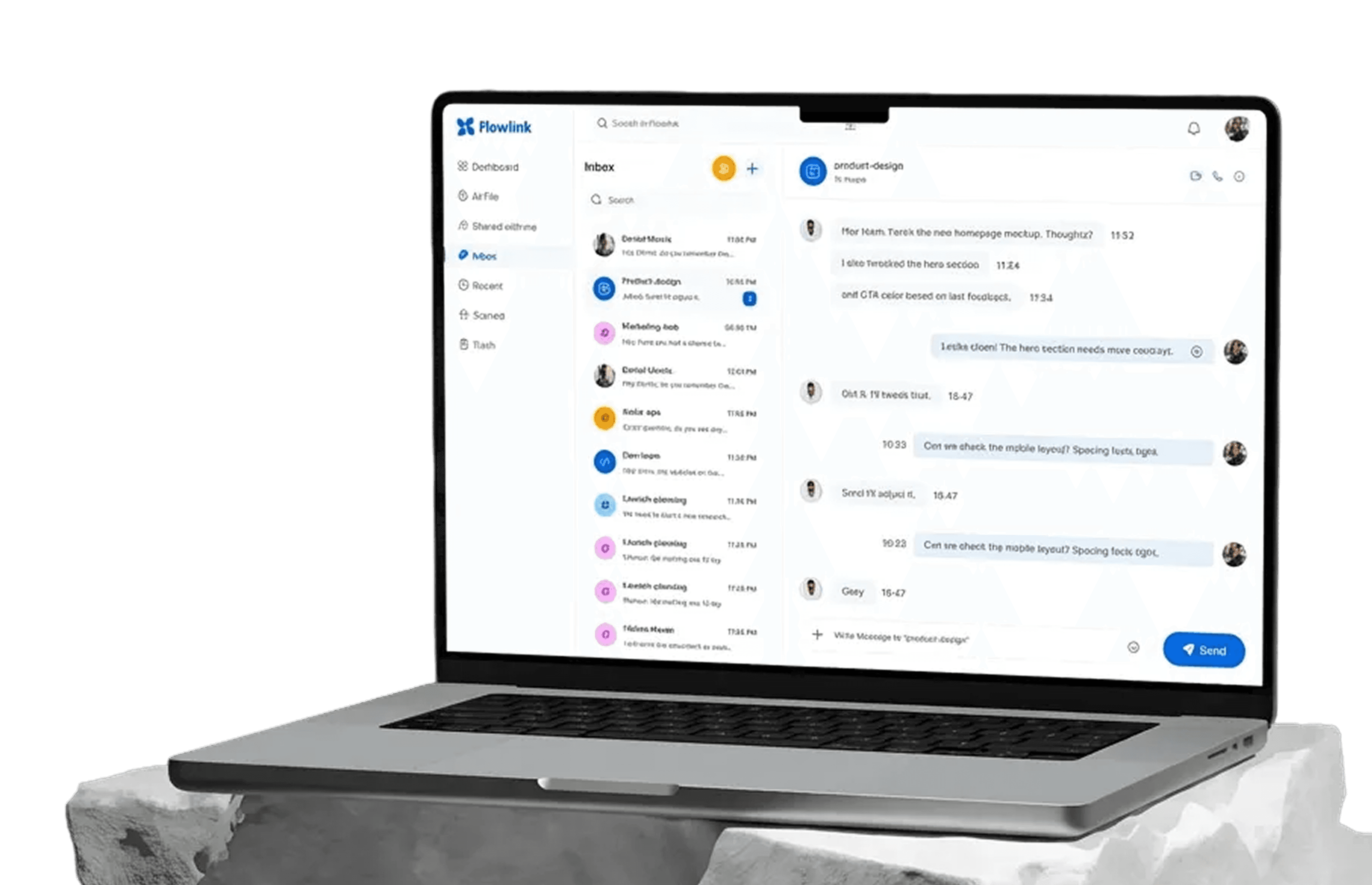
Work better together, wherever you are
Connect, share ideas, keep your team aligned.
View demo
View demo
Work better together, wherever you are
Connect, share ideas, keep your team aligned.
View demo
View demo