


INTEGRATION DETAILS
INTEGRATION DETAILS
Integration with Zentra
Integration with Zentra
Access and collaborate on documents, spreadsheets, and presentations from Zentra in Flowlink.
Access and collaborate on documents, spreadsheets, and presentations from Zentra in Flowlink.




Overview
Connect Zentra with Flowlink to bring all your documents, spreadsheets, and presentations into one unified workspace. Create, edit, and collaborate in real time while staying aligned with your team’s projects and conversations.
Every file update is reflected instantly inside Flowlink—so your team always works with the latest version, without switching apps or losing context.
What you can do with Zentra + Flowlink
Zentra integration simplifies file collaboration for your team.
Access all files in one place
Open Zentra documents, spreadsheets, and presentations directly inside Flowlink—no extra tabs, no searching.Collaborate in real time
Edit files together with your team and see updates instantly, keeping everyone aligned and productive.Keep files perfectly in sync
Changes in Zentra reflect in Flowlink, ensuring accuracy.Stay organized across projects
Attach files to tasks, discussions, and workflows so important documents are always easy to find.
Tools that make collaboration effortless
Teams love this integration because it removes friction from document collaboration. By bringing files and conversations together, Zentra + Flowlink eliminates confusion, duplicate versions, endless back-and-forth, and scattered team communication.
With everything accessible in one workspace, collaboration becomes faster, clearer, and more focused—helping teams move work forward without distractions.
How to set it up
Connecting Zentra with Flowlink takes just a few minutes.
Step 1. Go to Flowlink integrations
Open Flowlink → Settings → Integrations.
Step 2. Select Zentra
Choose Zentra from the list of available integrations.
Step 3. Connect your account
Authorize Flowlink to access your Zentra files securely.
Step 4. Choose what to sync
Select documents, spreadsheets, and presentations you want available in Flowlink.
Step 5. Save your preferences
Your files are now fully connected and ready to use in real time.
Start using Zentra + Flowlink
Work smarter, collaborate faster, and keep everything organized. Connect Zentra with Flowlink and bring your documents into the heart of your team’s workflow.
Overview
Connect Zentra with Flowlink to bring all your documents, spreadsheets, and presentations into one unified workspace. Create, edit, and collaborate in real time while staying aligned with your team’s projects and conversations.
Every file update is reflected instantly inside Flowlink—so your team always works with the latest version, without switching apps or losing context.
What you can do with Zentra + Flowlink
Zentra integration simplifies file collaboration for your team.
Access all files in one place
Open Zentra documents, spreadsheets, and presentations directly inside Flowlink—no extra tabs, no searching.Collaborate in real time
Edit files together with your team and see updates instantly, keeping everyone aligned and productive.Keep files perfectly in sync
Changes in Zentra reflect in Flowlink, ensuring accuracy.Stay organized across projects
Attach files to tasks, discussions, and workflows so important documents are always easy to find.
Tools that make collaboration effortless
Teams love this integration because it removes friction from document collaboration. By bringing files and conversations together, Zentra + Flowlink eliminates confusion, duplicate versions, endless back-and-forth, and scattered team communication.
With everything accessible in one workspace, collaboration becomes faster, clearer, and more focused—helping teams move work forward without distractions.
How to set it up
Connecting Zentra with Flowlink takes just a few minutes.
Step 1. Go to Flowlink integrations
Open Flowlink → Settings → Integrations.
Step 2. Select Zentra
Choose Zentra from the list of available integrations.
Step 3. Connect your account
Authorize Flowlink to access your Zentra files securely.
Step 4. Choose what to sync
Select documents, spreadsheets, and presentations you want available in Flowlink.
Step 5. Save your preferences
Your files are now fully connected and ready to use in real time.
Start using Zentra + Flowlink
Work smarter, collaborate faster, and keep everything organized. Connect Zentra with Flowlink and bring your documents into the heart of your team’s workflow.
Work better together, wherever you are
Connect, share ideas, keep your team aligned.
View demo
View demo
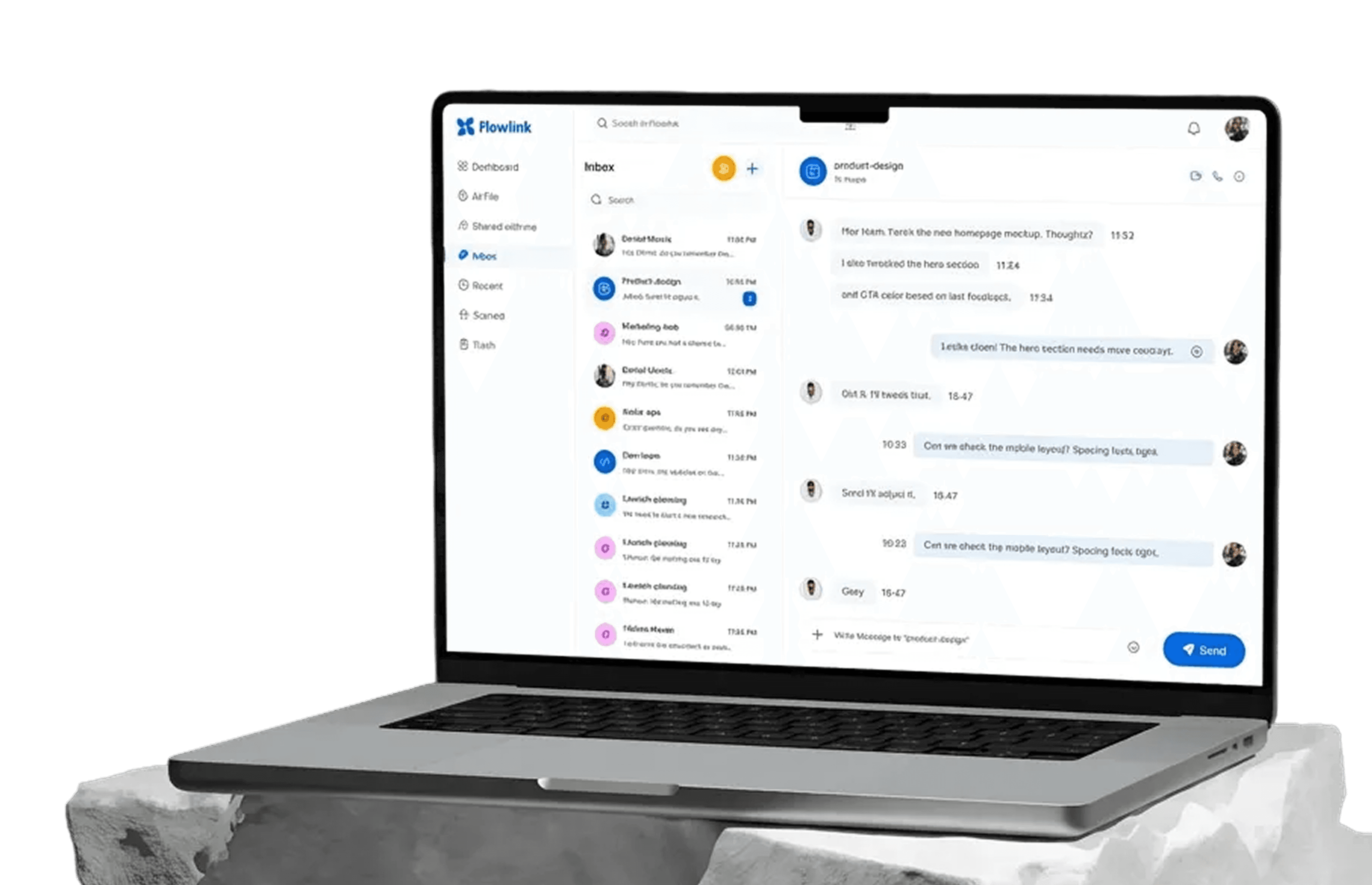
Work better together, wherever you are
Connect, share ideas, keep your team aligned.
View demo
View demo
Work better together, wherever you are
Connect, share ideas, keep your team aligned.
View demo
View demo